
Recently updated on March 11th, 2026 at 10:15 am
If you’ve received a redeem code or access key for a VR app or game — whether from a developer, giveaway, or promotional campaign — you might be wondering how to use it on your Meta Quest 3.
In this guide, we’ll walk you through exactly with the screenshots how to redeem a code and start playing in minutes. At this moment, this tutorial works well with Meta Quest 3, Meta Quest 3S, Meta Quest 2, and other devices in the Meta Quest lineup.
Steps to Redeem App/Game Code or Key on Quest 3
What Is a Meta Quest Redeem Code?
A redeem code is a special code provided by a developer or Meta that allows you to download a paid app or game for free. It is also known as “App Redemption Code“, “Promo Code“, “Store Code“, “Access Code“, and “Access Key” as well. Usually, it is a 16-character code or 25-character code.
These codes are commonly given to:
- Content creators & reviewers
- Beta testers
- Giveaway winners
- Promotional partners
Once redeemed, the game will permanently appear in your Meta library.
Method 1: Redeem Code Using the Meta Quest Mobile App (Recommended)
This is the easiest and most reliable method.
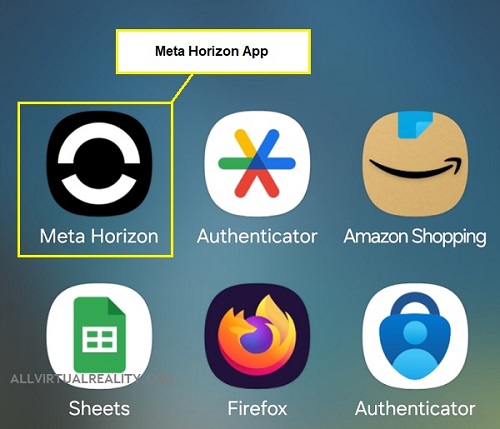
Step 1: Open the Meta Horizon App
On your smartphone, open the Meta Horizon app (make sure you’re logged into the correct Meta account linked to your headset).
Step 2: Go to Menu
Tap on the Menu button that looks like a hamburger icon. Usually, it is located at the top left corner of the app.

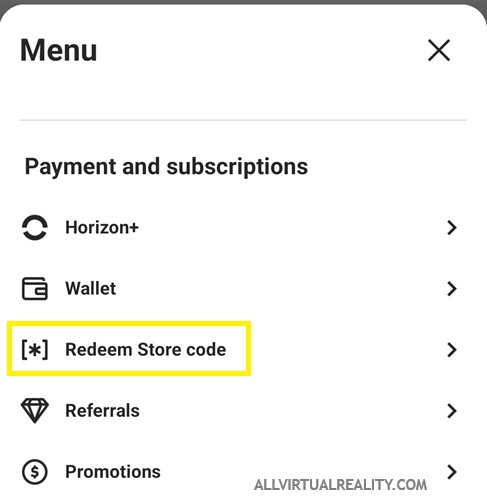
Step 3: Tap “Redeem Store Code”
Under “Payment and subscriptions“, tap Redeem Store Code.
Step 5: Enter Your Redeem Code or Access Key
Carefully enter the full code exactly as provided (including dashes). As mentioned before, it can be a 16-character or 25-character code. Example is: ABCDE-FGHIJ-KLMNO-12ABC-34DEF.
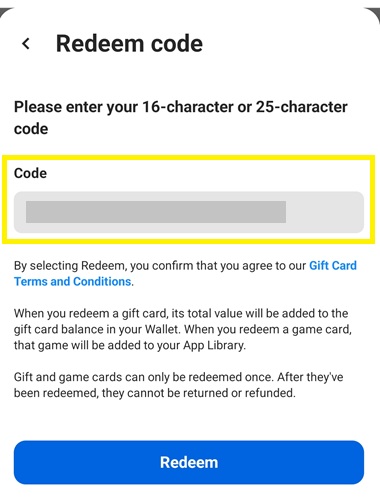
Step 6: Confirm
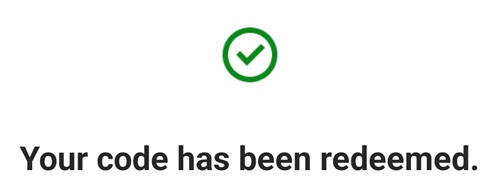
Tap Redeem. Upon successful, you can see “Your code has been redeemed” message appears.
Step 7: The app or game will automatically be added to your library. The status is now “Install Queued“.

Step 8: Put on your headset, go to Library, check under All Apps, download and install the game or app. If it doesn’t appear immediately, restart your headset.
Method 2: Redeem Code via Web Browser (Alternative)
If you don’t want to use the mobile app, you can also redeem your code through a browser.
Step 1:
Go to the official Meta redeem page at https://secure.oculus.com/redeem-code.
Step 2:
Log in using the Meta account connected to your Quest 3.
Step 3:
Enter the access code and click Redeem.
After confirmation, the app will appear in your headset library.
Why Isn’t My Redeem Store Code Working?
If your redeem code doesn’t work, check the following:
- You entered the wrong characters (0 vs O, 1 vs I)
- The code has already been redeemed
- The code has expired
- You are logged into the wrong Meta account
- The code is region-restricted
If issues continue, contact the developer who provided the key.
Final Thoughts
Redeeming a code or key pass on the Meta Quest 3 is quick and straightforward. Whether you’re testing a new indie VR title or reviewing the latest immersive experience, redeeming your code only takes a few minutes.
If you’re a content creator like many in the VR space, knowing how to redeem and manage keys efficiently will make your workflow much smoother.
If you want more beginner-friendly guides like this, check out our other tutorials inside the Tutorials & How-To category or you can bookmark our Meta Quest 3 Tutorials Hub too for fast reference.
About Author


