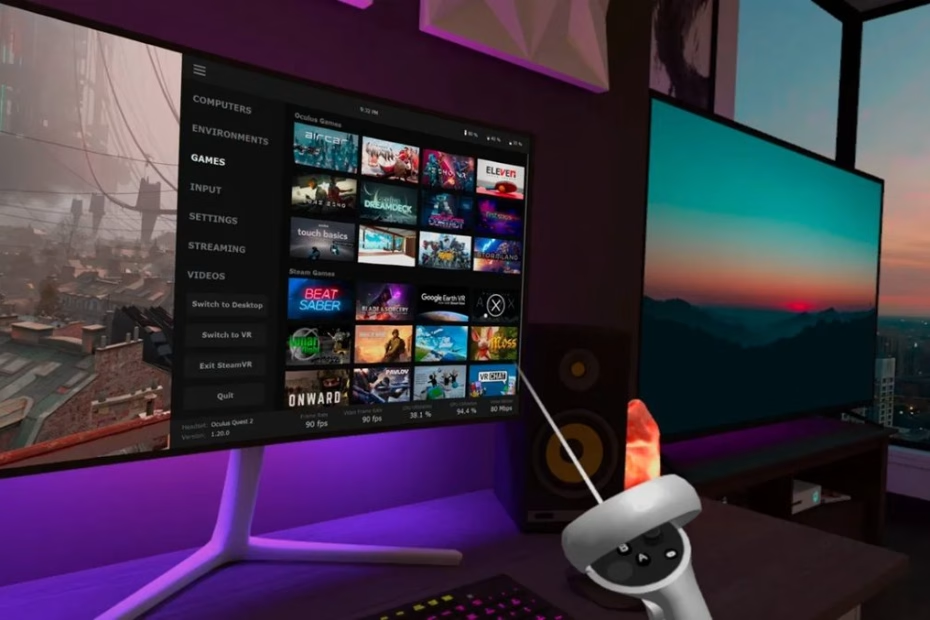
Virtual Desktop is one of the best tools for turning your Meta Quest 3 into a powerful wireless PC VR headset. It allows you to stream PC VR games, access your desktop, and enjoy high-quality VR experiences without being tethered by cables. In this guide, we’ll walk through how to install and set up Virtual Desktop on Meta Quest 3 together with pictures and screenshots that can help you along the way. Besides, we also provide tips to ensure smooth performance.
Steps to Install & Set Up Virtual Desktop on Quest 3
What Is Virtual Desktop?
Virtual Desktop is a popular VR application that lets you wirelessly stream your PC screen and VR content directly to your Meta Quest 3. It is widely used for playing PC VR games from platforms like SteamVR and for productivity tasks such as working on a large virtual monitor setup.
Step 1: Check System Requirements
Before installing Virtual Desktop, make sure you have:
- A Meta Quest 3 headset
- A VR-ready PC (Windows 10 or newer)
- A 5GHz Wi-Fi or Wi-Fi 6 router (strongly recommended)
- A stable local network connection
For best results, your PC should be connected to the router using an Ethernet cable.
Step 2: Purchase and Install Virtual Desktop on Meta Quest 3
- Open the Meta Horizon app on your phone.
- At the Store, search for Virtual Desktop.
- Purchase the app. The price is USD 24.99 on Meta Store (last checked on 10 February 2026).
- Put on your Meta Quest 3 headset.
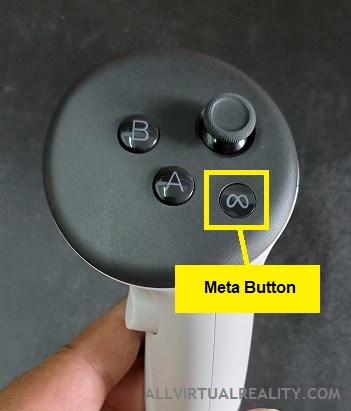
- Press and hold the Meta button on the right controller to bring up the Universal Menu.
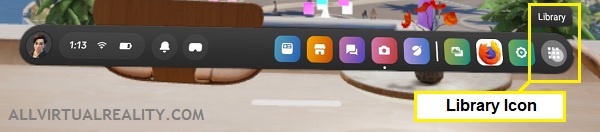
- Click on the Library icon.
- Find the Virtual Desktop app that you buy just now. Click on the app icon and the installation will start.
- Launch Virtual Desktop once installation is complete.
Virtual Desktop is a paid app, but it is well worth the investment for wireless PC VR.
Just to add, you can also purchase the app straightaway from your Meta Quest 3 headset. If you are still not sure how to purchase and install the app, hope this article below can help you:
Step 3: Install Virtual Desktop Streamer on Your PC
Okey guys, this is a very important thing to do in order to use Virtual Desktop…
- Using your PC, visit the official Virtual Desktop website at https://www.vrdesktop.net/.
- Download the Virtual Desktop Streamer from the website based on your PC type (Windows or Mac).
- Install the software on your PC.
- Open the software. Its name on your PC is ‘Virtual Desktop Streamer‘.
- Click on the Account menu. Log in using the same Meta account used on your Quest 3.
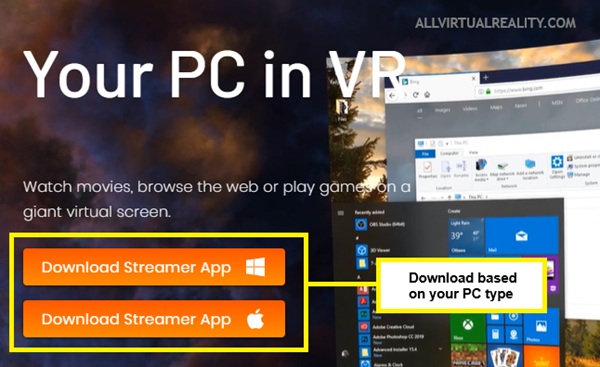
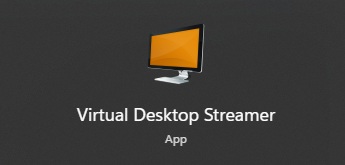
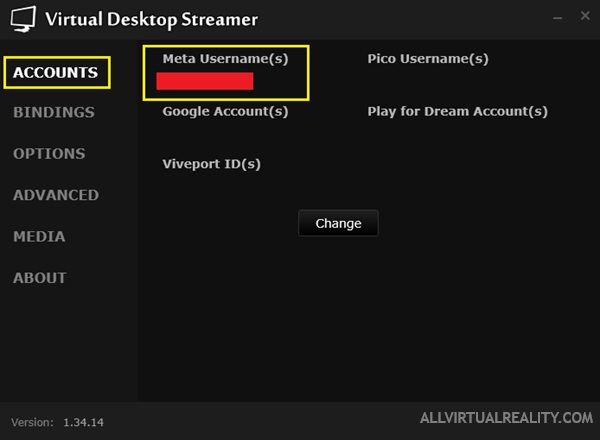
The Streamer app allows your headset to detect and connect to your PC.
Step 4: Connect Meta Quest 3 to Your PC
- Put on your Meta Quest 3 headset.
- Press and hold the Meta button on your right Touch Controller.
- The Universal Menu will appear. Click on the Library icon.
- Open the Virtual Desktop app.
- Select your PC from the available device list.
- Connect wirelessly through your local network.
- Once connected, you should see your PC desktop inside the VR environment.
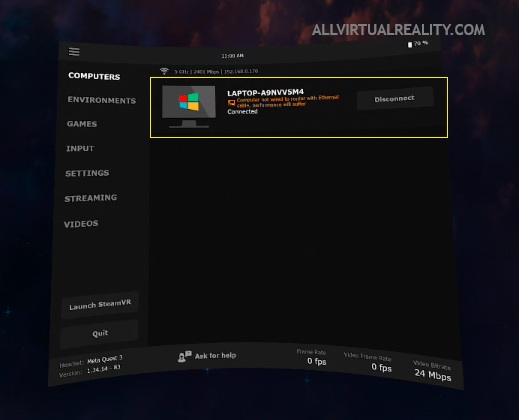
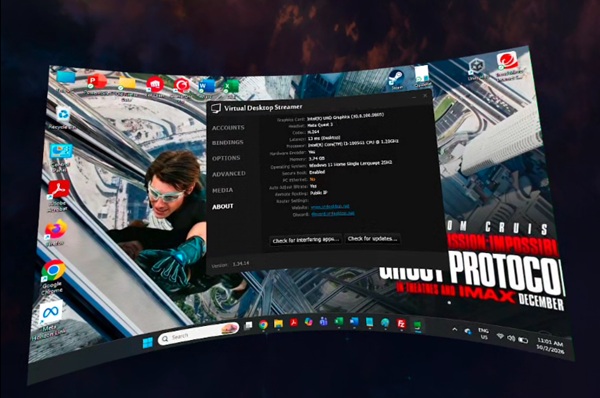
Done! You can see your computer screen looks like a very large TV inside the VR headset.
Tips for Best Performance
- Use a Wi-Fi 6 router if possible.
- Keep your Quest 3 close to the router.
- Close unnecessary background apps on your PC.
- Adjust bitrate and refresh rate in Virtual Desktop settings.
Lowering graphics settings in demanding games can also improve stability.
Final Thoughts
Setting up Virtual Desktop on Meta Quest 3 is one of the best ways to unlock wireless PC VR gaming and productivity. With the right network setup and settings, you can enjoy smooth, high-quality VR experiences without the hassle of cables. Whether you’re streaming PC VR games or using your desktop in VR, Virtual Desktop remains a must-have app for Quest 3 owners.
If you want more beginner-friendly guides like this, check out our other tutorials inside the Tutorials & How-To category.
About Author


